Set up your first property
After onboarding the setup wizard creates your first property, connects the messengers your guests write to and gives the AI its first answers. It takes a few minutes, and most of it can be skipped and finished later.
Until you reach the last screen, every page of Greetio brings you back to the wizard. From the second screen on, the bar at the top shows where you are: Welcome · Property · Channels · Knowledge Base · Success. The language switcher sits in the top right corner.
Choose how to start
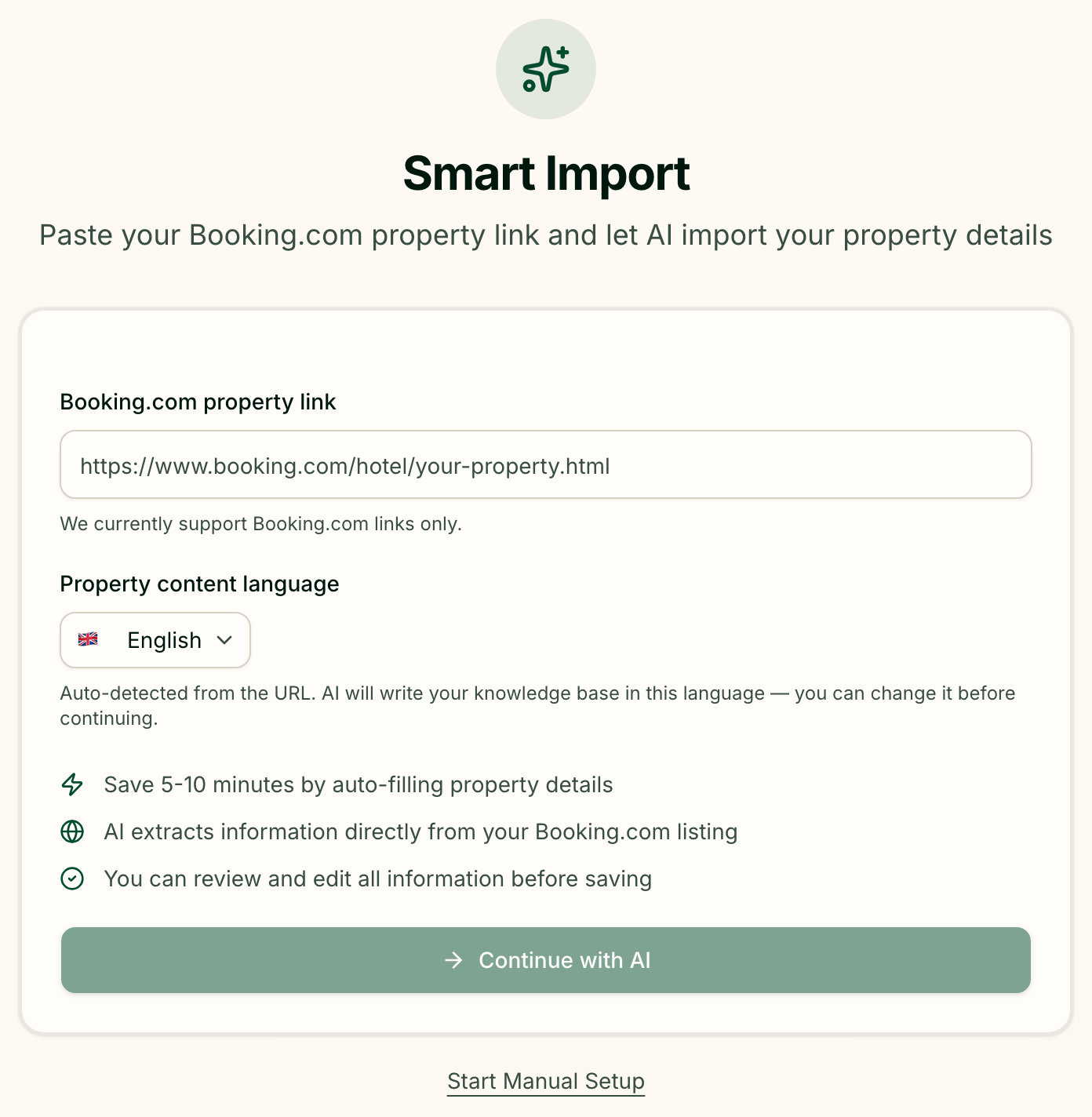
The first screen, Smart Import, offers two ways in.
| Way | When it suits you |
|---|---|
| Continue with AI | Your property is listed on Booking.com. Greetio reads the listing and fills in the details for you |
| Start Manual Setup | The property is not on Booking.com, or you would rather type everything yourself |
For the first way, paste the address of your property's page into Booking.com property link. Below it, Property content language is picked automatically from the country in the link: the AI will write your knowledge base in this language. Change it if your guests mostly speak something else, then press Continue with AI.
What happens next:
- "We found your hotel." — Greetio already knew this property, and the details are filled in at once.
- "We are checking your hotel link." — the listing is being read in the background. It can take a few minutes; you do not have to wait and can carry on with the wizard.
In both cases the wizard jumps straight to channels, skipping the property form. The import brings the property's name, type, address, city, country, amenities and room types. Everything can be changed later in the property settings.
If the link turns out to be wrong, or no hotel is found behind it, Greetio says so — "This link is invalid or no hotel was found." — and returns you to the first screen to try another link or set up manually.
Describe your property
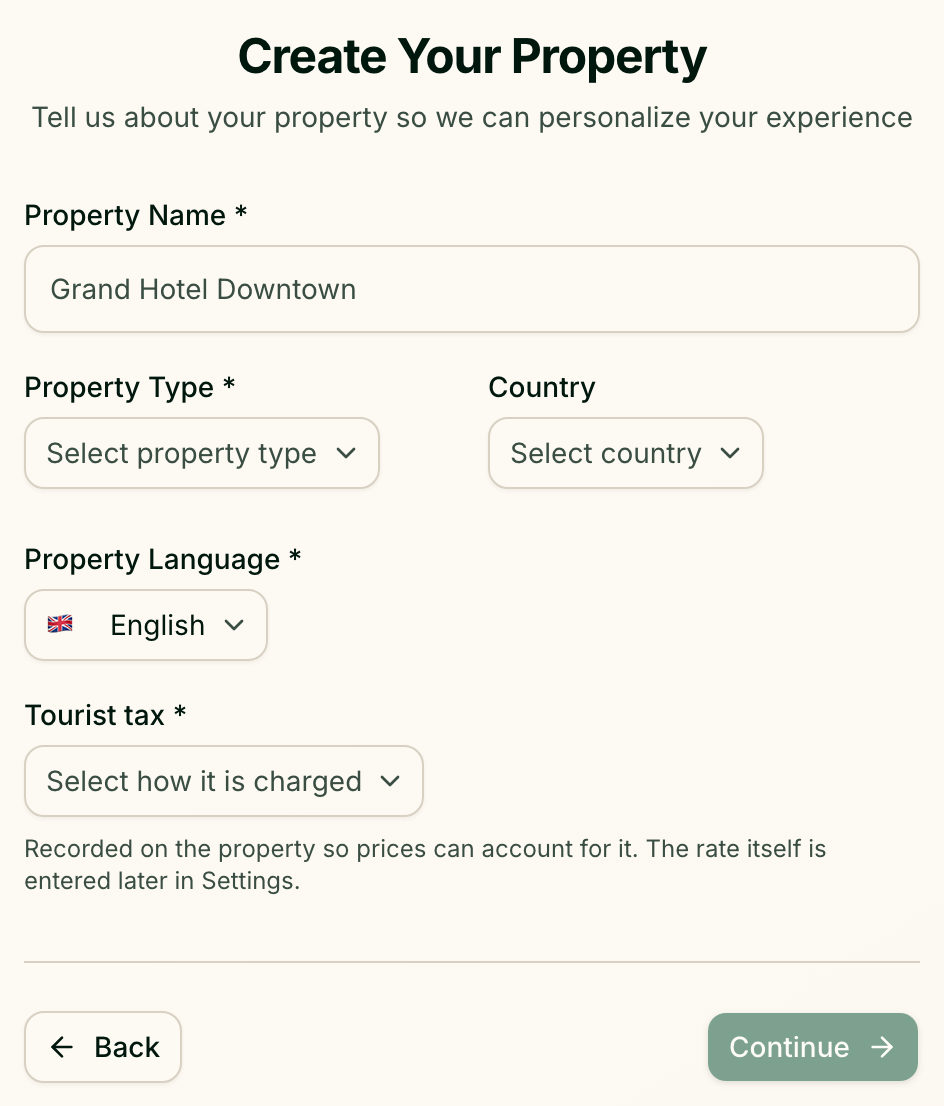
On the manual path the next screen is Create Your Property. Fields marked with an asterisk are required, and Continue stays inactive until they are filled in.
| Field | What it is |
|---|---|
| Property Name * | The name guests know, 2 to 100 characters |
| Property Type * | Hotel, Holiday Home, Hostel, Apartment or Guest House |
| Country | Where the property is |
| Property Language * | English, Українська or Italiano — the language of the knowledge base and the AI's replies |
| Tourist tax * | How the tax is charged, see below |
Tourist tax has three answers:
| Answer | Choose it when |
|---|---|
| We do not charge it | There is no tourist tax where you are, or you do not collect it |
| Already inside the nightly price | The price per night already includes it |
| Charged on top of the nightly price | Guests pay it in addition to the price |
The question is required for a reason: a property that finishes setup without an answer will quote guests incomplete prices on the day it starts charging the tax. Only the way it is charged is recorded here — the rate itself is entered later in property settings.
The Booking.com path skips this screen, but not the question: if the tax was never answered, the wizard sends you back here right before finishing.
Connect channels
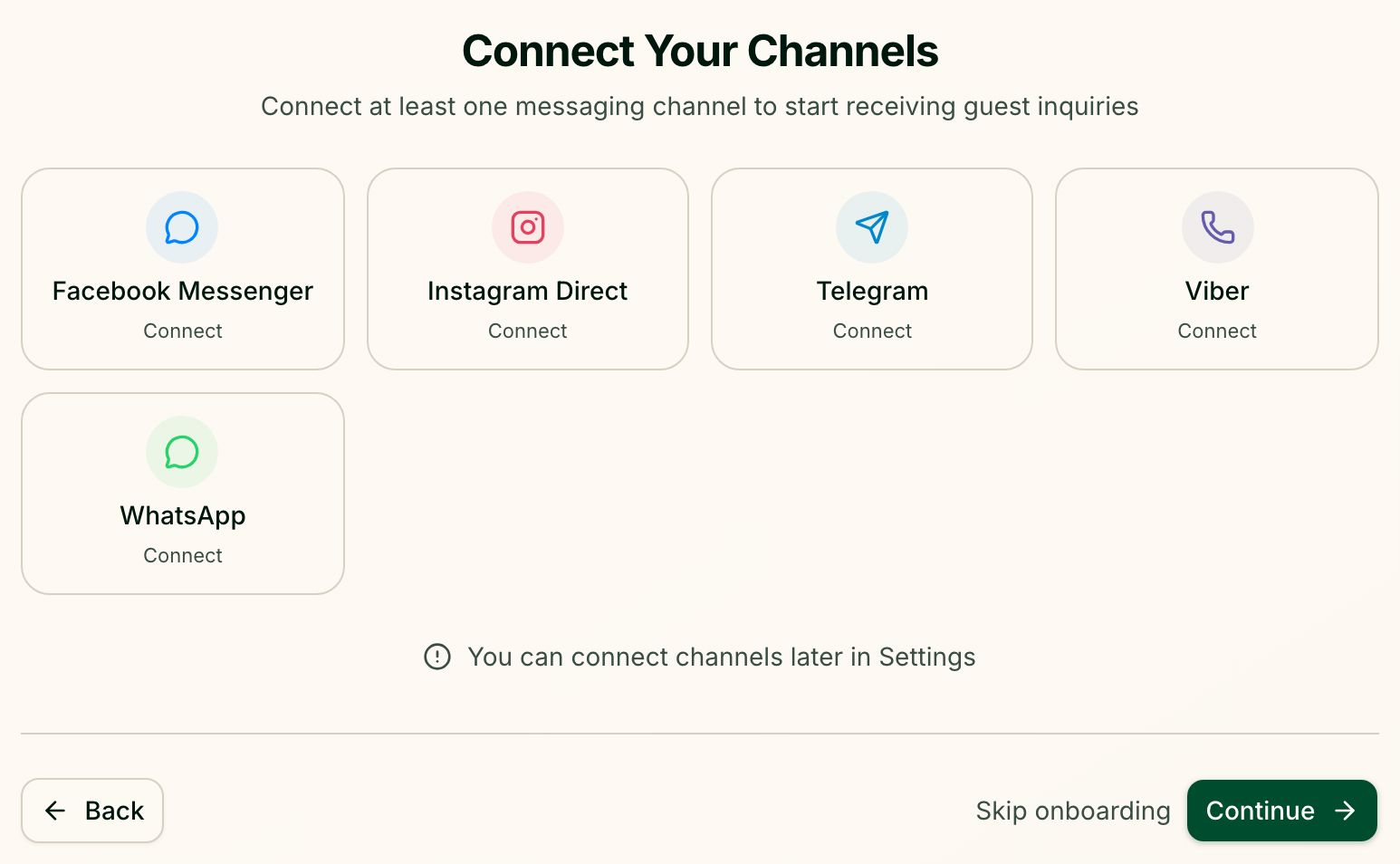
Connect Your Channels shows five messengers. Click a tile and follow the steps for that channel:
| Channel | What you need |
|---|---|
| Telegram | A bot token. In Telegram open @BotFather, send /newbot, follow its questions and copy the token it gives you into Bot Token. The dialog has an Open @BotFather link |
| Viber | The Auth Token of your Viber bot from Viber Partners, and a Bot Avatar URL — a link to the bot's picture. Viber requires both |
| Facebook Messenger | Sign in to Facebook in the window that opens and give access to your Facebook Page |
| Instagram Direct | Sign in in the window that opens and give access to your Instagram Business account. If your Facebook Page is linked to an Instagram Business account, connecting Facebook activates Instagram Direct as well |
| Sign in with the Meta account that manages your WhatsApp Business portfolio, then connect an existing WhatsApp Business number or choose a Cloud API number |
Facebook, Instagram and WhatsApp open a separate window. If nothing appears, your browser blocked it — Greetio will say Allow popups for Greetio and try again.
A connected channel shows Connected. Click it again to see its status or to Disconnect it.
You do not have to connect anything now. Continue and Skip onboarding both take you to the next step — despite its name, Skip onboarding skips only this screen, not the rest of the wizard. Channels can be added any time later: see Channels, which also covers the channels the wizard does not offer.
Teach the AI about your property

Teach AI about your property is a catalogue of the questions guests ask most often — check-in time, parking, breakfast and so on — grouped by topic. The AI uses your answers when it drafts replies to guests.
Two tabs choose how much of the catalogue you see:
- Essential (45) — the starter set every property should cover;
- All (114) — the full catalogue, including rarer and seasonal questions.
Click Answer next to a question, type what a guest should be told and press Save. Each answer is saved at once, and the topic heading counts how many questions you have answered.
Answer as many as you like, then press Continue — or Skip for now if you would rather do it later. The same questions wait for you in the knowledge base.
Finish
Setup Complete! saves everything and shows the property's name and how many channels are connected — or "No channels connected (add later in Settings)". Three buttons suggest what to do next:
- Go to Inbox — start answering guests;
- Invite Team Members — bring your colleagues in, see Team;
- Connect More Channels — open the channel settings.
From this point the wizard does not open again, and Greetio starts on the inbox.
If you stop halfway
Close the tab and sign in again later, and Greetio returns you to the start of the wizard. Nothing done so far is lost: the property is saved as soon as you leave the property step, and every connected channel and answered question is saved the moment you make it. The wizard also remembers what you typed in this browser, so going through it again is quick.
Current limits
- Smart Import reads Booking.com only. Links to Airbnb, social networks or your own site are not accepted; use manual setup for those properties.
- The wizard asks only for the essentials. Address, time zone, contact phone and email, and links to your other listings are set in property settings. After a manual setup the time zone stays at UTC until you change it there.
- Five channels in the wizard. Other channels are connected from the channel settings.
- Three property languages. The knowledge base and AI replies can be in English, Ukrainian or Italian.
- The AI autopilot is not set up in the wizard. How independently the assistant works is configured separately in AI autopilot.