Rooms, rates, services and promotions
This is what you sell: rooms, their prices, the extras and the offers. The assistant quotes prices and describes rooms from here, the calendar builds its rows from here, and the booking widget shows it to guests. Keep it accurate and the assistant stays accurate.
All four pages are in the Manage menu in the top bar, under Content:
| Page | Address |
|---|---|
| Rooms | /content/rooms |
| Rates | /content/rates |
| Services | /content/services |
| Promotions | /content/promotions |
When a PMS or another integration is connected, rooms, rates and services are filled in from it — see Integrations. While it is fetching data, the pages say Integration sync is running. We are fetching new data.
Rooms, services and promotions can be reordered by dragging, and any item can be copied with Duplicate — quicker than filling in a similar room or offer from scratch. If you close a form with unsaved changes, Greetio asks first.
Rooms
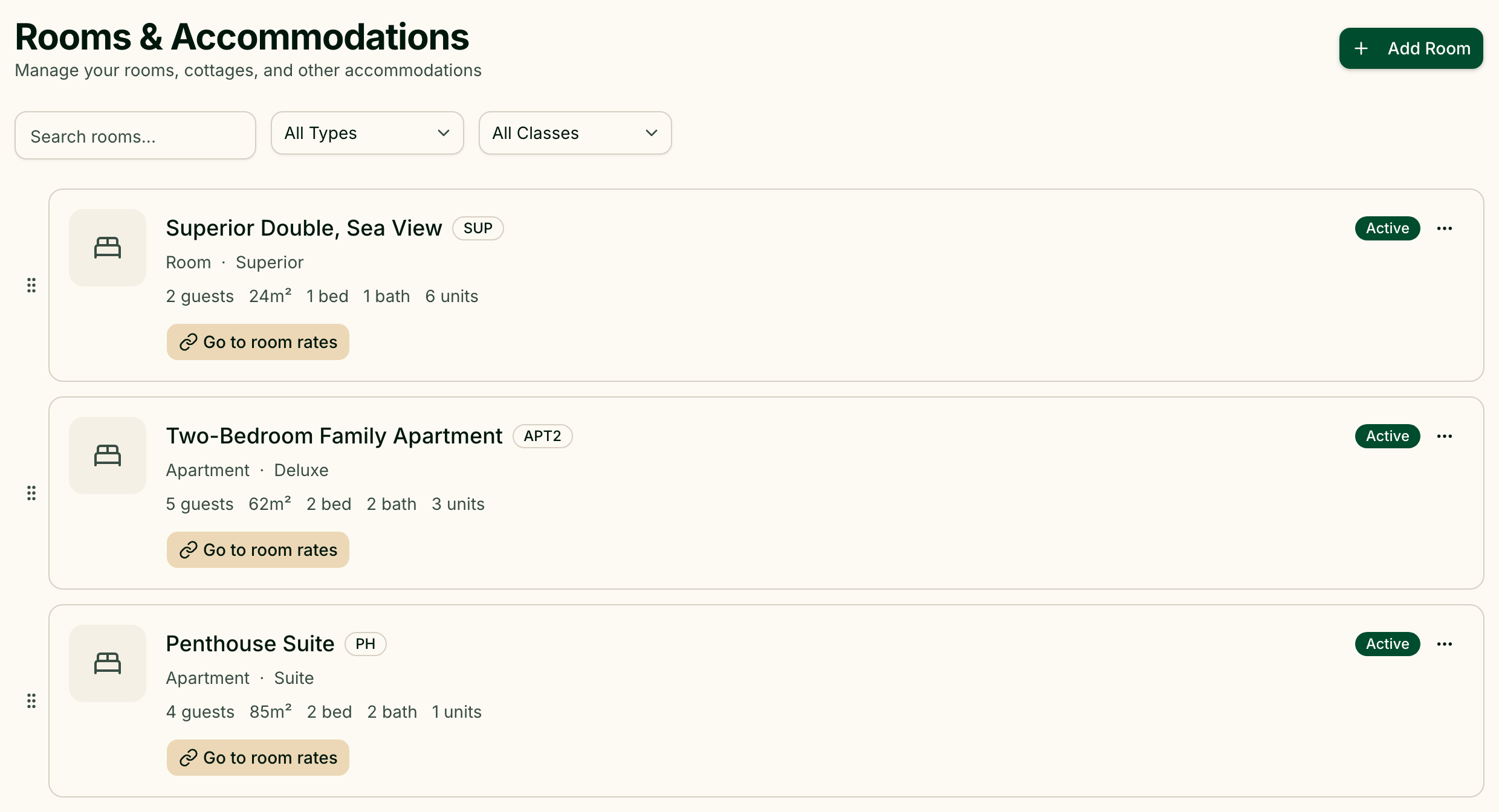
A room here is a room type — "Standard Double", "Family Cottage" — with the number of identical units you have of it. Add Room opens the form:
| Part | Fields |
|---|---|
| Basic Information | Room Name, Short Code, Description, Highlights — the key selling points |
| Type & Class | Accommodation Type (Room, Cottage, Apartment, Villa, Glamping, Tent, Hostel Bed, Other), Room Class (Economy to Presidential), View Type |
| Capacity | Max Guests, Max Adults, Max Children |
| Space & Layout | Area (m²), Bedrooms, Bathrooms, Has Bathtub, Bed Configuration — one or more sets of beds |
| Amenities | Grouped ticks — comfort, bathroom, kitchen, family, pets and more — plus Add custom amenity |
| Photos | Up to 10 photos, JPG, PNG or WebP up to 10 MB each; the first is the cover |
| Settings | Total Units, External ID (the room's number in your PMS), Active |
Total Units matters: the calendar gives each unit its own row, and the assistant will not sell more units than you have.
The list can be searched and filtered by type and class. Go to room rates on a card opens the rates of that room. Deleting a room deletes its rates too.
Rates
A rate is a price for one room over a period. Add Rate opens the form:
| Part | Fields |
|---|---|
| Basic Information | Rate Name, Room Type |
| Pricing | Price Type (Per Room, Per Person, Per Night), Weekday Price (per night), Weekend Price (per night), Currency, Holiday Markup % |
| Validity Period | Valid From, Valid To — leave empty for no date limits |
| Guest & Stay | Guests Included, Extra Guest Price, Meal Plan (Room Only, Breakfast, Half Board, Full Board, All Inclusive), Minimum Nights |
| Settings | Active |
Weekend days, at the top of the page, decides which nights are charged at the weekend price — for the whole property. Deselect every day to charge one price all week.
Rates are grouped by room and marked by where they are in their life:
| Status | Meaning |
|---|---|
| Active | In effect today |
| Upcoming | Starts later |
| Expired | Its period is over |
| Inactive | Archived by hand |
An expired rate has Renew: it opens a copy valid from today for a year. Archive takes a rate out of use without deleting it; Activate brings it back. Rates marked Managed by Exely come from Exely.
Services
Services are everything besides the room: spa, breakfast, transfer, parking, excursions, late check-out. Add Service opens the form with two tabs.
The Details tab:
- Service Name and Description;
- Category — SPA & Wellness, Dining, Excursions, Transfer, Activities, Childcare, Events, Parking, Laundry, Business, Pets, Extra Charges, Other;
- Pricing Model — Complimentary, Paid or On Request; for a paid service, Price, Currency and Price Type (Per Service, Per Person, By Item, Per Hour, Per Day, Per Month);
- a Price ladder when the price depends on quantity — two hours cost less than twice one hour, a pack of five sessions is cheaper per session;
- Minimum when added to a stay (hours), when a guest who is already staying may book a shorter visit than someone coming in from outside;
- Area (m²), Max Guests, photos, and Active.
The Bookings tab is available once the service is saved. This is where a service becomes something guests can book for a time slot:
| Setting | What it does |
|---|---|
| Can be booked | Switches booking on or off for guests and the assistant |
| Booking model | Request, Availability, Booking or Payment — how far the assistant goes; explained in AI autopilot |
| Payment policy | Full payment, prepayment or payment at the property; Configure payment policy opens it |
| Requires active reservation | Only guests with a room booking covering that time can book |
| Guest scope | Property-wide, Selected rooms or Private — a private resource belongs to one room |
| Service resources | What is actually booked: a sauna, three massage rooms, two therapists. A resource has a Quantity of identical units, a Guests capacity and, if it differs, its own Price and buffer |
| Slots | Slot step, minutes, Default buffer, minutes, Lead time, minutes, Max per resource per day, Operating hours |
| Upsell | Let AI suggest this service while a guest books a room. Keep it to a few services, or the offer gets noisy |
| Bundle | Two services sold as one — a sauna together with a hot tub. The booking takes both or neither |
| Task automation | Create task automatically before the service, for a department and an assignee — see Tasks. Inquiry department is where the assistant reports a booking it could not take |
A bookable service needs at least one active resource. Without Operating hours the assistant can recommend the service but cannot book it — the card warns you with Operating hours not configured.
Booking requests that wait for your team's confirmation are collected on Bookings, opened with View bookings at the top of the services page. See Calendar.
Promotions
Promotions are discounts the assistant can offer. Add Promotion opens the form:
| Part | Fields |
|---|---|
| Basic Information | Promotion Name, Description, Promo Code |
| Discount Settings | Discount Type (Percentage Discount, Fixed Amount Off, Fixed Price), Discount Value, Currency, Applies To (All Items, Rooms, SPA Services, Services, Events) |
| Validity Period | Valid From, Valid To, Max Uses |
| Conditions | Added one by one with Add condition |
| Stacking & Priority | Can Stack with other promotions, Stacking Group, Priority |
| AI Summary | A short description for the assistant |
| Settings | Active, Voice via bot when showing prices |
Conditions:
| Condition | Example |
|---|---|
| Minimum nights | Stay of 3 nights or more |
| Minimum guests | Groups of 4 and more |
| Minimum amount | Bookings over a set sum |
| Book days in advance | Early booking, 30 days ahead |
| Check-in days | Arrivals on chosen weekdays only |
| Guest type | Birthday, Military, Returning Guest, VIP |
| First-time guest only | First booking only |
| Promo code required | Works only with the code |
With Voice via bot when showing prices on, the assistant mentions the promotion by itself whenever it quotes a price; such promotions carry the Auto-voiced badge. Without it, the assistant still answers when a guest asks about discounts. Which promotions it mentions at all is set in AI autopilot.
The list filters by Active, Scheduled and Expired. Each card counts how many times the assistant showed the promotion and how many times it was redeemed.
Current limits
- Built for accommodation. Room types, nightly rates and meal plans fit hotels, hostels and apartments; a restaurant or a tour agency will not find its own categories here.
- A promotion applies to a whole group. Applies To picks rooms, services and so on as a group; a promotion for one particular room or service cannot be set up.