Calendar
The calendar shows which rooms are free and which are taken, and lets you add, move and cancel bookings by hand. Open it at /calendar.
Two tabs sit under the page title:
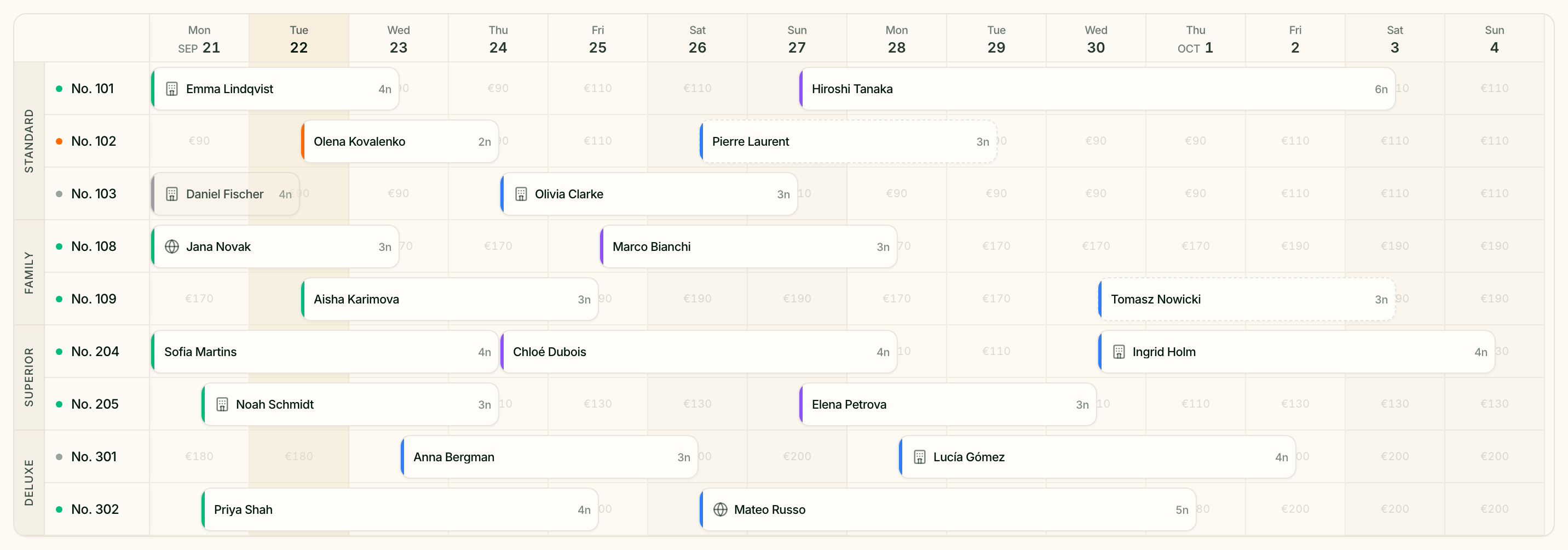
- Rooms — the occupancy chart: one row per room, one column per night;
- Services — an hourly schedule for the sauna, massage room and anything else guests book by the hour.
Before you start
The rows of the chart come from your rooms in Content. Each room type gives as many rows as it has units, grouped under the type's name. Until at least one room exists the calendar shows No rooms yet and a Set up rooms button that takes you there. When a PMS is connected, its rooms arrive on their own.
Move around the chart
| Control | What it does |
|---|---|
| Arrows and the date range between them | Step back or forward one period. Click the range to open Go to date, or jump back with Today |
| Week, 2 weeks, Month | How many nights fit on screen |
| Grid and List | The chart, or the same bookings as a table |
| Filters | Narrow down what is shown |
| Status legend | What the colours and icons mean |
Weekends and public holidays are shaded, and today's column is highlighted.
Filter and see prices
Filters holds Room type, Source, Status, a Total price range from Min to Max, and two switches:
- Show only available hides rooms that are fully booked for the period;
- Show prices writes the nightly price into empty cells, taken from the room's active rate — weekend prices and holiday markup included. The prices fit in the Week and 2 weeks views; in Month the columns are too narrow.
Clear filters resets everything at once.
Read the colours
A booking is a bar across the nights it covers. Its colour tells you where the guest is in their stay — the same colours as in the inbox:
| Colour key | Meaning |
|---|---|
| Staying now | The guest is in the property right now |
| Arriving today | Checking in today |
| Paid · upcoming | Paid, arriving later |
| Upcoming stay | Booked, not paid yet |
| Past guest | Already checked out |
| Free | The room is empty |
| Tentative | Dashed outline: a provisional booking |
| Cancelled | Cancelled, kept for the record |
The legend also shows the icons for bookings that came from Booking.com, Airbnb, Servio PMS and Exely PMS.
Add a booking
Click New reservation, or click an empty cell — or drag across several nights in one row — and the form opens with that room and those dates filled in. The form has four parts:
- Guest — Guest name, Phone, Email. As you type the name, Greetio looks for existing guests; pick one and the booking is linked to their profile.
- Dates & stay — crossed-out dates are already booked for this room.
- Room — the room and the number of Adults and Children.
- Pricing — choose a Rate plan to fill in the price, or Custom price to type your own Total; then Status and Payment.
A Booking comment at the bottom is for anything your team should know.
When a PMS or Booking.com is connected, a Create as field appears at the top of a new booking:
| Option | What happens on save |
|---|---|
| Internal | The booking lives in Greetio only |
| Servio PMS | The booking is also sent to Servio |
| Exely PMS | Exely checks availability and conditions first, then the booking is created |
| Booking.com | Stored in Greetio only — it will not appear on Booking.com |
Open, edit and move a booking
Click a bar to open Reservation details: the guest with a link to their profile and past stays, dates, room, the total and Payment. When a deposit has been paid you see Paid so far and Balance due; a booking of several rooms is marked as a group booking, and one payment covers all its rooms. The Booking comment can be edited right there. Edit opens the full form.
On the chart itself:
- drag a bar to another room or other dates — the number of nights stays the same;
- drag the left or right edge of a bar to change check-in or check-out.
Before anything is saved, a confirmation shows what changes — Category, Room, Dates, Total — and waits for Save. If the room is taken on the new dates, the move is refused.
Bookings that a PMS delivered into an already occupied room are not dropped: they appear in an Overbooking row above the rooms. Drag such a booking onto a free room to settle it.
Cancel or delete
Cancel reservation marks the booking as cancelled and frees the room. The booking stays in the history, and the confirmation offers Keep reservation if you clicked by mistake.
If Servio refuses to cancel a booking automatically — the guest may already be checked in or billed — Greetio says so with Cancel manually in Servio: the booking stays active until you cancel it in Servio yourself.
Delete permanently removes the booking for good. Only owners and managers see it, and it is not offered for Exely bookings.
Work with the list
List shows the bookings for the chosen period as a table with the columns Guest, Room, Arrival → Departure, Nights, Status, Source, Total and Payment. Click a column to sort by it, click a row to open the booking.
Plan services by the hour
The Services tab shows services that guests book for a time slot. Rows are resources — a sauna, a massage room, a hot tub — and bookings are blocks on the time line. What counts as a resource, and a service's working hours, are set on the service in Content. With no bookable services yet you see No active services yet and Set up services.
Views are Day, Week, 2 weeks and Month. In the Day view the time step can be 30 or 60 minutes. Filters narrow by service, resource, source and status. A shaded band after a booking is the buffer time needed to get the resource ready.
| Status | Meaning |
|---|---|
| Requested | A guest asked; your team has not confirmed yet |
| Confirmed | Booked |
| On hold | Kept for the guest for a short time, for example until payment |
| Awaiting payment | Waiting for the guest to pay |
| Hold expired | The hold ran out without payment |
| Completed | The service took place |
| No-show | The guest did not come |
| Cancelled | Cancelled |
To add a booking, click or drag across an empty slot. Create service booking asks for the service, resource, date, start and end time and status. Linking a guest is optional; a service that is only for staying guests also needs an active Reservation covering that time. With Servio or Exely connected, Create as can also send the booking there as a charge or an extra service — the form says when a service or reservation does not qualify.
Drag a block to move it, drag its edge to change its length, or open it to change the time, resource or status. Cancel booking frees the resource.
Approve service requests
Some services are set up so that a guest's booking is only a request until your team confirms it. Those requests wait on Bookings, reached with View bookings on the services page. Each request shows the guest, time, resource and room, with a link to the chat:
- Confirm — the booking is confirmed and the guest gets a message;
- Decline — the booking is cancelled; the Reason is optional and is shown to the guest;
- Reschedule — move it to a new time on the same service and resource.
If the message to the guest could not be delivered, Greetio says so, and you send the update from the conversation yourself.
Current limits
- Booking.com is read-only. A booking created as Booking.com is not sent there.
- Changes to Exely bookings stay in Greetio. They are marked "Greetio only — not sent to Exely".
- Service schedules are not taken from a PMS. Hourly resources live in Greetio's own service calendar.