Name yourself and your organization
Right after your first sign-in Greetio shows a single screen, Welcome!, with two fields. It appears once: after you press Continue you go on to the setup wizard and never see it again.
Until this screen is filled in, every other page of Greetio brings you back to it.
Fill in the two fields
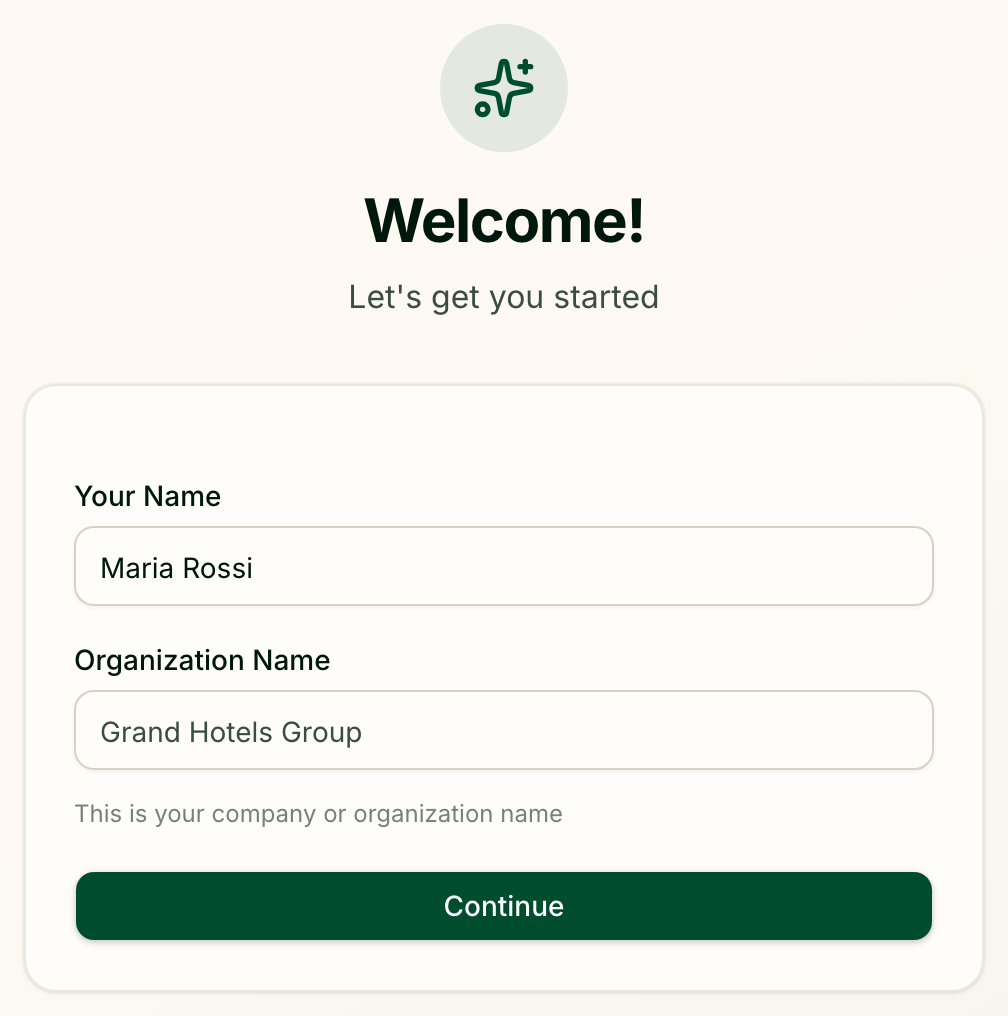
| Field | What to enter |
|---|---|
| Your Name | How your colleagues will see you. If you signed up with a name, or with Google or Facebook, it is already filled in — check it and correct it if needed |
| Organization Name | The name of your business as a whole, for example the company that runs your hotels |
Both need at least 2 characters. Press Continue.
Greetio creates the organization and makes you its owner — the role with full rights, including inviting the rest of the team.
Organization and property are not the same thing
The organization is the business; a property is a single hotel, hostel or apartment inside it. You name the organization here and create the first property in the next step, in the wizard.
| Organization | Property | |
|---|---|---|
| What it is | Your business | One place guests stay |
| What belongs to it | The team and their roles | Channels, conversations, knowledge base, rooms and prices |
| How many | One per business | As many as you run |
So if your company is "Carpathian Hotels" and it runs the "Edelweiss" hotel, the organization is "Carpathian Hotels" and the property is "Edelweiss".
The organization's name can be changed later under Organization in settings.
If you were invited
If an invitation is waiting for your email address, pressing Continue takes you to that invitation instead of creating a new organization. You join the team that invited you — see Join a team you were invited to.