Tasks
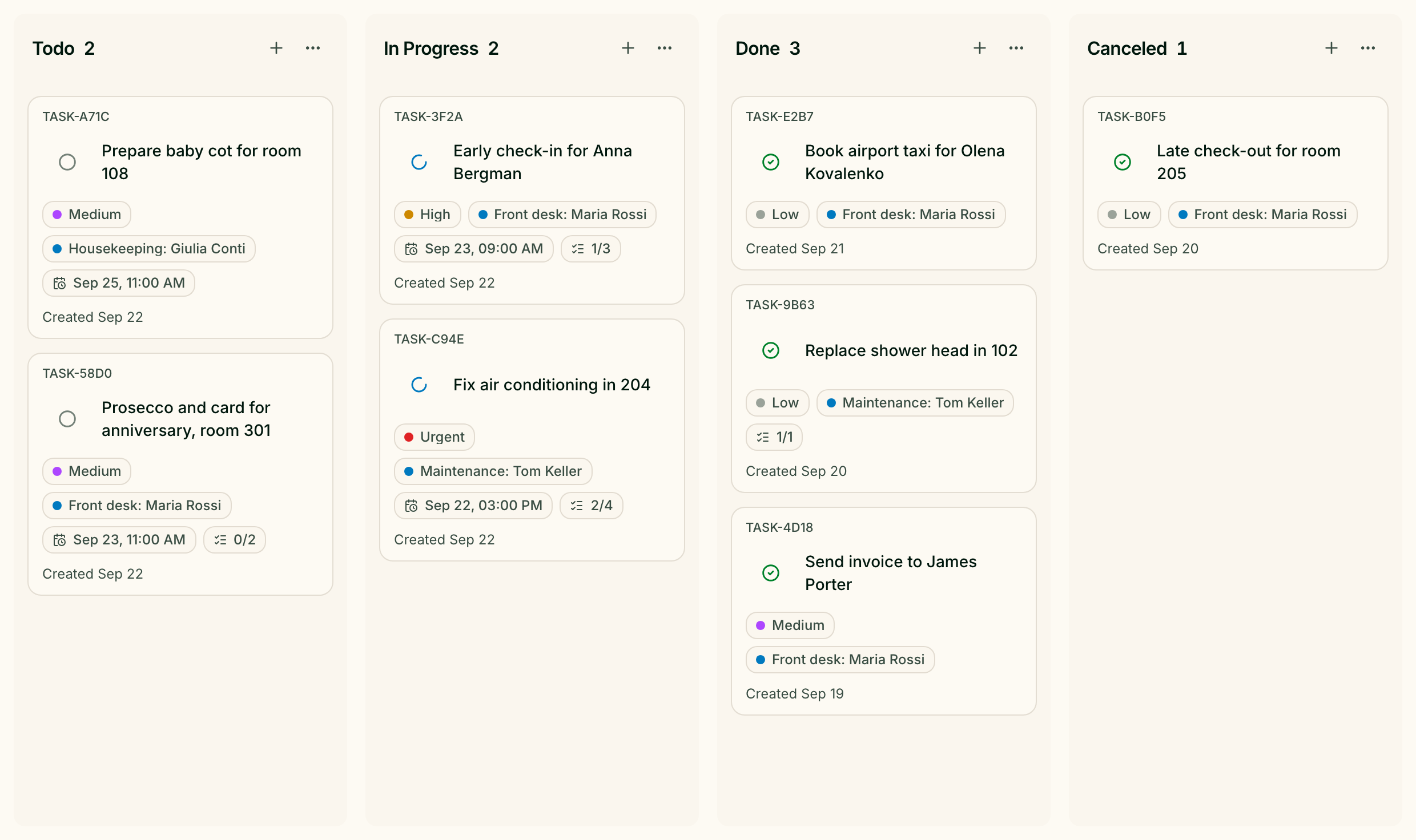
Tasks are the jobs your staff have to do for guests: bring towels to room 12, fix the kettle, prepare the sauna for seven o'clock. They are kept on a board at /tasks, and each task goes to someone in one of your departments.
Where tasks come from
- Your team creates them on the board or straight from a conversation.
- Greetio AI creates them when a guest asks for something that needs a person — the request goes to the right department and to whoever is on shift.
- Service bookings can create a preparation task, or a task to confirm a booking request, depending on how the service is set up in Content.
- A poor review after the stay turns into a task for the manager — see Post-stay feedback.
Before you start
Every task belongs to a department — reception, housekeeping, maintenance — and is assigned to one of its contacts. Departments, their contacts and their shift schedules are set up in Departments. Until there is at least one department, the task form says Create a department before assigning tasks.
Contacts receive their tasks in Telegram and can change the status from there. A contact who has not connected Telegram still gets the task, but the notification waits until they do.
Read the board
Each column is a status. A new board has columns for tasks to do, in progress, done and cancelled; you can rename, recolour and add your own.
A card shows the task number, title, priority, due date, assignee, checklist progress and the conversation it came from. An overdue date turns red. Move a card by dragging it to another column or up and down within one, or use the arrow on the card to move it to the next status.
Columns hides the statuses you do not need to see right now; Show all columns brings them back.
Find a task
Search tasks looks through task titles. Add Filter narrows the board by Department, Assignee, Conversation, Priority and Source — tasks created by the assistant are marked Greetio AI. Clear filters removes them all.
Create a task
- Add task at the bottom of a column: type a title and press Create. The task lands in that column; fill in the rest later.
- Create task at the top of a column opens the full form.
The full form has the title, a description and a checklist, and chips for Status, Priority (Low, Medium, High, Urgent), the due date and the assignee. The assignee is a department plus one of:
| Choice | What it does |
|---|---|
| Who is working now | The task goes to whoever is on shift in that department. If they go off shift, it moves to another available contact |
| Specific contact | Always this person |
Save task creates it.
Create a task from a conversation
In the inbox, the conversation header has Create task. A task created there keeps the guest's latest message as its context, so the person doing the job sees exactly what was asked. Related tasks, next to it, lists every active task linked to this conversation.
Work on a task
Click a card to open it. From there you can:
- change the status, priority, assignee and due date;
- tick off checklist items, add new ones with Add checklist item, reorder or delete them;
- in Context, see the guest, the room and the original message, with Open guest profile and Open conversation;
- Detach the conversation when the task was linked to the wrong one — the conversation itself is not deleted;
- read the Event log: who created, reassigned and moved the task, and when notifications were sent or failed.
Delete task is in the menu at the top.
Manage statuses
The menu on a column header has Add status, Edit status, Hide column and Delete this status. A status has a Name, a Color and a Category — Unstarted, Started, Completed or Canceled — which tells Greetio where the status sits in a task's life. A status that still has tasks cannot be deleted: move them out first. At least one active status must remain.
Who can do what
| Role | Can |
|---|---|
| Owner, Manager | Everything, including statuses and deleting tasks |
| Administrator | Create, edit and assign tasks |
| Viewer | See the board |