Inbox
Every message your guests send arrives in one list — Telegram, Viber, WhatsApp, Facebook Messenger, Instagram Direct, Threads and the chat widget on your own site. Nobody has to keep five apps open to notice that someone is asking about a late check-in. Open it at /inbox.
The screen has three panes: filters on the left, the list of conversations in the middle, and the conversation itself on the right. On a phone you see one pane at a time and move between them.
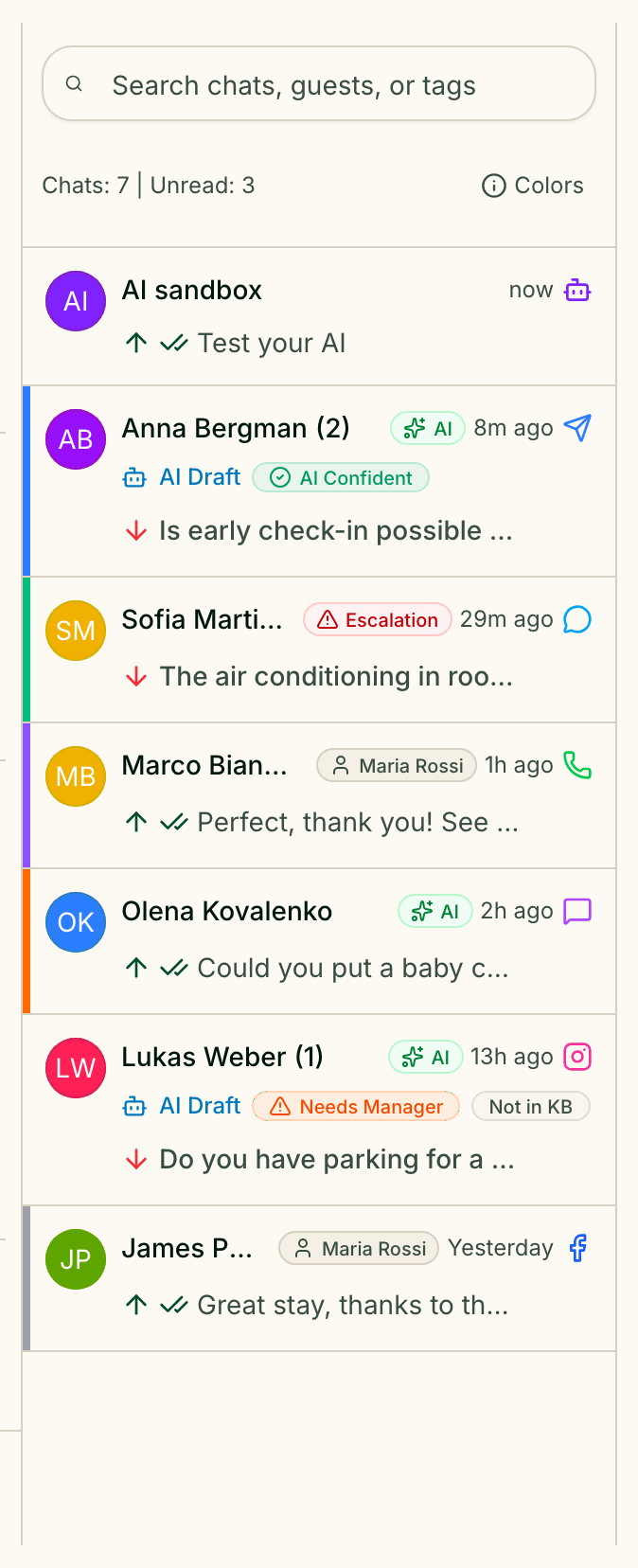
Find the conversation you need
The search box above the list — Search chats, guests, or tags — looks at the guest's name, the text of the last message and the guest's tags. Partial words match. When a conversation is found by a tag, that tag is shown in the result, so you can see why it matched.
The rail on the left filters the list. Expand filters and Collapse filters switch it between full labels and icons.
| Group | What it holds |
|---|---|
| Quick filters | All, Unread, Escalation, Assigned to me, Unassigned |
| Folders | Your own groupings, managed in Folders |
| Channels | Telegram, Viber, WhatsApp, Facebook, Instagram, Email, Web |
| Status | The seven states below |
Filters combine: pick Unread and Telegram and you get unread Telegram conversations only.
Email appears in the channel filter, but there is no email connector yet — no mail arrives through it and none is sent. Every other channel in that list can be connected on the Channels settings page.
Read the colours before you open anything
Colors, above the conversation list, opens the Guest stay status legend. The coloured dot on each row tells you where that guest is in their stay:
| Dot | Meaning |
|---|---|
| Staying now | The guest is in the property right now |
| Arriving today | Checking in today |
| Paid · upcoming | Paid, arriving later |
| Upcoming stay | Booked, not paid yet |
| Past guest | Already checked out |
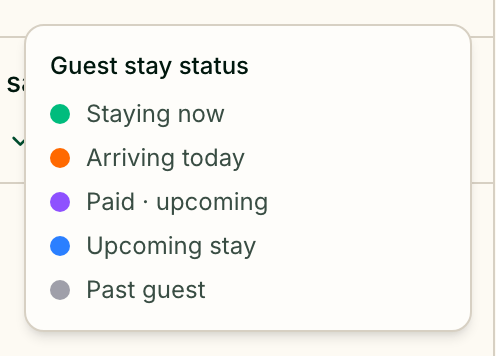
This is the fastest way to tell a guest standing at your desk from one who booked for March, without opening a single chat.
Move a conversation through its states
The status control sits in the conversation header. There are seven states:
| Status | Use it when |
|---|---|
| New | Nobody has touched the conversation yet |
| Open | Someone is working on it |
| Pending | You are waiting for the guest to come back to you |
| Snoozed | Put aside deliberately, to return to later |
| Resolved | The guest's question is answered |
| Escalation | It needs someone more senior |
| Archived | Closed and out of the way |
Decide who answers
The Assignee control, also in the header, chooses who owns the conversation:
- Greetio AI — the assistant answers on its own,
- a team member — picked from your team,
- Unassigned — nobody has taken it yet,
- Mobile manager — shown when someone replied from Telegram rather than from the web interface.
Assignment changes, status changes, AI activity, tasks and payments are all recorded in the conversation as system events, so it stays clear who did what. Guests never see them.
Reply
Type in the composer at the bottom. Alongside plain text you can:
- open Quick replies to insert a saved answer instead of retyping it,
- attach files, where the channel supports them — a channel that does not will say so rather than fail silently,
- record a voice message.
To find something said earlier in a long conversation, use Search messages in the conversation header: it counts the matches and steps through them with Older match and Newer match.
Work with AI drafts
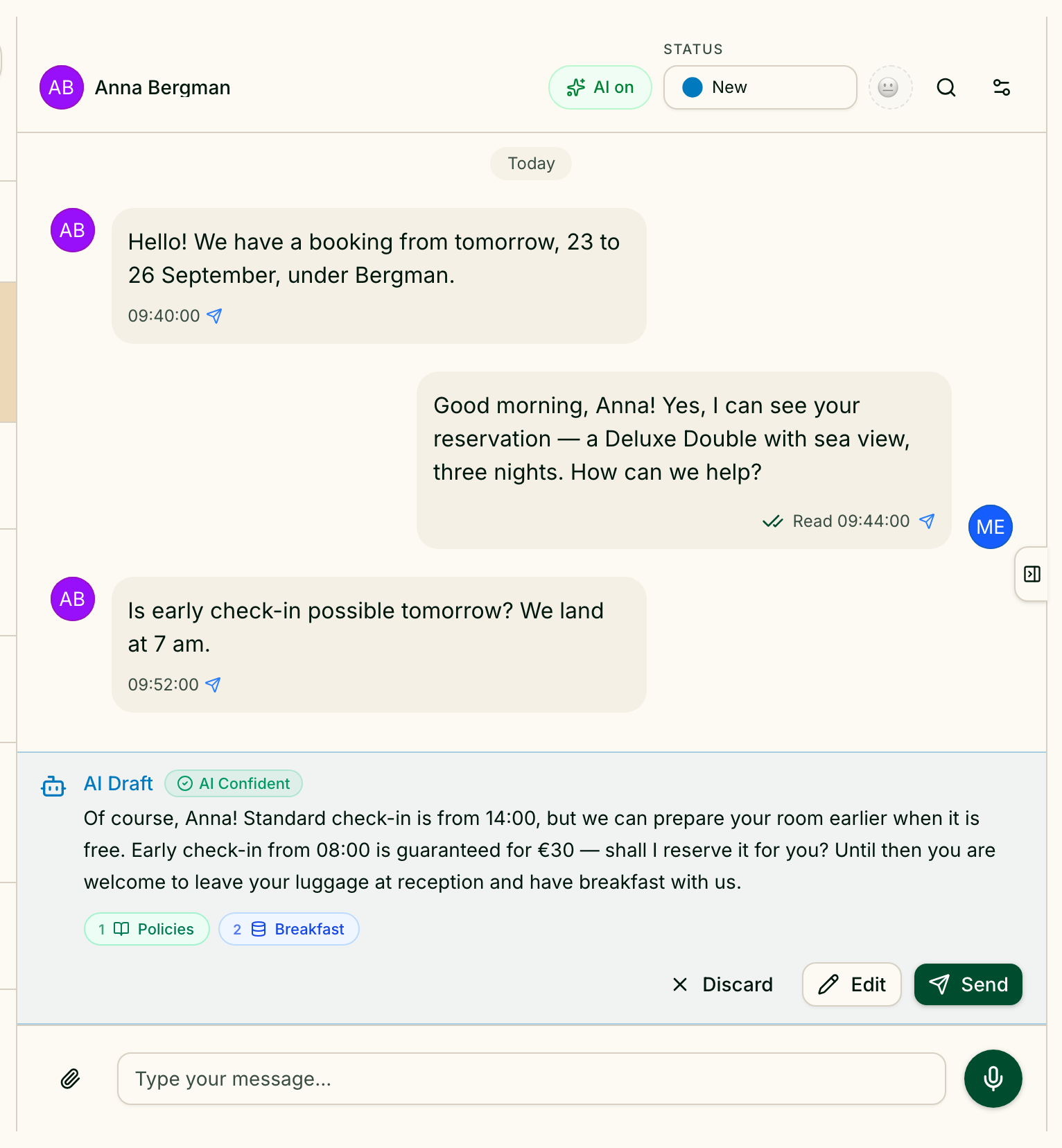
When a guest writes, the assistant prepares a reply from your knowledge base and shows it as an AI Draft before anything is sent. The draft carries:
- a confidence badge — AI Confident, Review Draft or Needs Manager, with a short reason such as "Not in KB" or "Price check",
- Sources — the knowledge base entries the answer was built from, so you can check it rather than trust it,
- a warning, New message received since this draft was generated, when the guest has written again in the meantime.
You can Send it as it stands, Edit it and then Save & Send, or Discard it. When a draft has gone stale the send button becomes Send Anyway — a deliberate speed bump, because the guest's newest message may have changed the question.
The editor uses Markdown, and the result may look slightly different in the guest's messenger.
Test the assistant before guests meet it
The AI sandbox is a pinned conversation at the top of the list. Write in it as if you were a guest and see exactly what the assistant would answer. If the answer is wrong, suggest the right one — that feedback is what it learns from.
Start fresh archives the current test messages and keeps what the AI learned. Resetting or deleting the sandbox removes the messages and the feedback for the whole property, so it is worth being sure first.
When you cannot reply
Some conversations are read-only, and a banner at the bottom says why:
- the conversation is archived;
- the conversation is archived and the channel connection that handled it was removed;
- the web widget is switched off for this property, so the guest can no longer receive anything;
- your role does not have permission to reply.
Current limits
- No email channel. It is in the filter list only.
- No bulk actions. Conversations are archived and assigned one at a time.
- Attachment support depends on the channel. Each messenger allows different file types, and Greetio tells you when the one you picked will not go through.