Connect channels
A channel is a messenger account of your property — a Telegram bot, a WhatsApp number, a Facebook Page. Once it is connected, whatever guests write to it lands in the inbox, and your replies go back the same way. Channels live in Settings → Communication → Channels, at /settings/channels.
Only roles that are allowed to manage channels can click the cards. Everyone else sees the same page, read-only.
What each channel needs
Have this ready before you start:
| Channel | How it connects | What you need |
|---|---|---|
| Telegram | Bot token | A Telegram bot created with @BotFather |
| Viber | Token and avatar | A bot in Viber Partners and a link to its picture |
| Sign-in with Meta | The Meta account that manages your WhatsApp Business number | |
| Facebook Messenger | Sign-in with Meta | Admin access to your property's Facebook Page |
| Instagram Direct | Sign-in with Instagram | An Instagram Business account |
| Threads | Sign-in with Threads | Your Threads account — for comments, not private messages |
| TikTok | Sign-in with TikTok | One or more TikTok accounts |
| Website chat | Chat widget settings | Your own website |
Read the cards
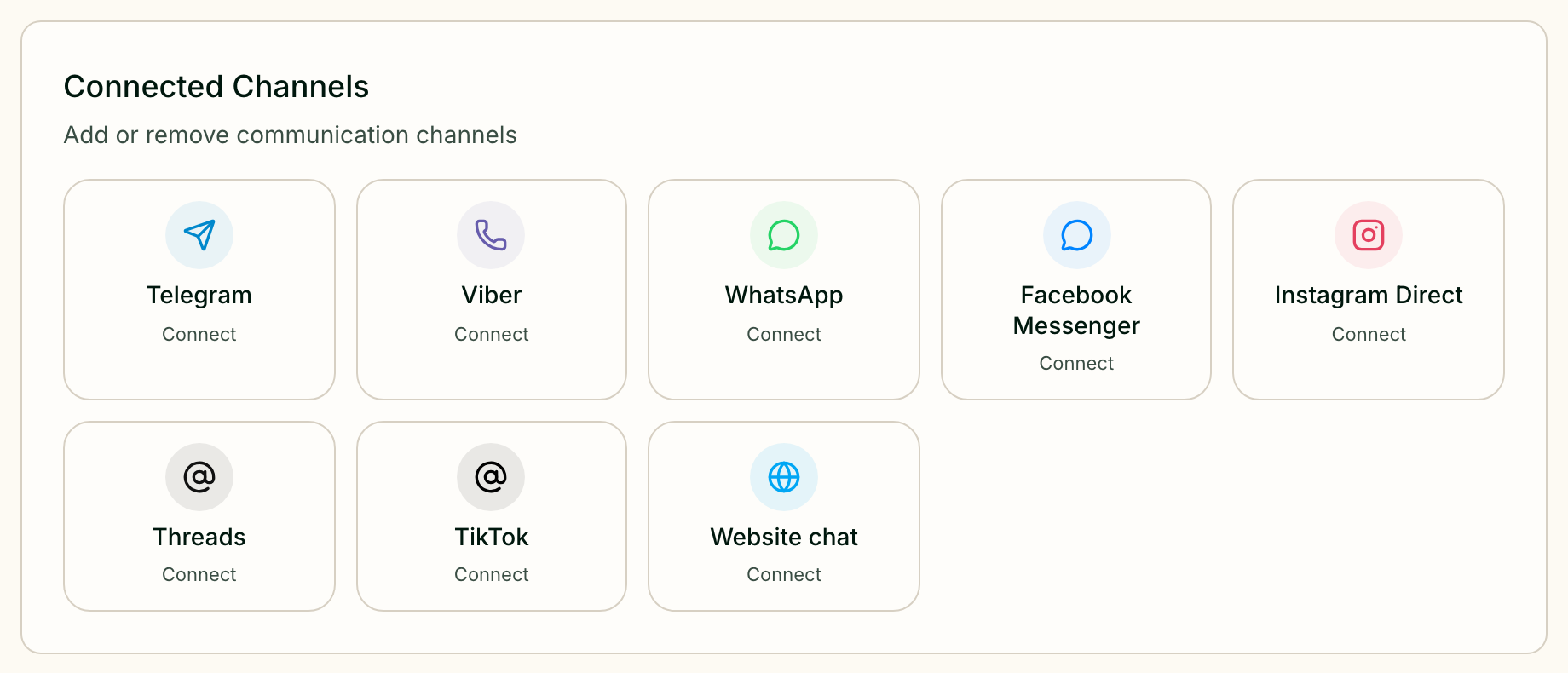
The Connected Channels section shows one card per channel. Each card tells you where it stands:
| On the card | Meaning |
|---|---|
| Connect | Not connected yet — click the card to start |
| A name with a green tick | Connected: the bot's @username, the Page name or the WhatsApp number |
| Needs reconnect | The connection broke — click the card and connect again |
The Facebook card can carry a second line with an Instagram @username: that Instagram account is served through the same connection.
Telegram
- Open @BotFather in Telegram, send
/newbotand follow its steps. - Copy the token BotFather gives you.
- Click the Telegram card, paste it into Bot Token and press Connect.
The card then shows the bot's @username. Guests write to that bot, and the conversations appear in the inbox.
Viber
- In Viber Partners, create a bot or pick an existing one.
- Copy its token from the bot settings.
- Click the Viber card and fill in Auth Token and Bot Avatar URL, then press Connect.
Viber will not accept a bot without a picture, so the avatar is required: an
https:// link to an image, ideally 720×720 pixels.
WhatsApp
Click the WhatsApp card and press Continue with Meta. A Meta window guides you through three things:
- signing in with the Meta account that manages your WhatsApp Business portfolio;
- choosing the number — an existing WhatsApp Business App number, or a new Cloud API number;
- allowing Greetio access, so messages and the history you approve appear in the inbox.
When it is done, the card shows the number. Messages start to arrive once Meta sends them to Greetio — the window tells you so.
If your business already has its WhatsApp set up by a developer, use Advanced manual setup instead. It asks for WhatsApp Business Account ID, Phone Number ID and System User Access Token, and shows the callback address to paste into the Meta webhook settings.
Facebook Messenger and Instagram Direct
Click the Facebook Messenger or Instagram Direct card and a Meta sign-in window opens straight away. Sign in, grant access to the Page or the Instagram Business account, and Greetio sets up the rest by itself.
If your Facebook Page is linked to an Instagram Business account, connecting Facebook also switches on Instagram Direct. When the Page has no Instagram linked, Greetio tells you right after the connection.
The sign-in opens in a new window. If nothing happens when you click the card, your browser has blocked it — allow pop-ups for Greetio and click again.
Threads
Threads is not about private messages: it brings in the comments under your posts. Click the Threads card and sign in with your Threads account.
The comments are handled on their own page, Manage → Threads, at /social-inbox. There you see your posts, the comments under each one, and can reply, Hide comment or Show comment again. When AI has prepared an AI draft reply, you can send it or Delete draft.
TikTok
Click the TikTok card. The window lists the connected accounts, each with what TikTok has allowed Greetio to do:
- Comments — Granted or Not granted;
- Direct messages — Granted or Not granted.
Connect another account adds one more account; you can have several. Reconnect permissions renews access for an account that lost it, and Refresh status reloads what TikTok reports. For the connection to work, grant both permissions for comments, or both for messages, when TikTok asks.
Comments and mentions are shown on a separate page, Manage → TikTok, at /tiktok.
Chat on your own website
The Website chat card does not connect a messenger. It opens the chat widget settings, where you add your site and get the code to put on it — see Web widget. Once your site is added, the card shows its address.
Disconnect a channel
Click a connected card and press Disconnect. Greetio counts the conversations that came through this channel and asks Disconnect Channel?:
| What you pick | What happens |
|---|---|
| Archive chats | The connection is removed, the conversations stay in Greetio as read-only history |
| Delete everything | The connection, its conversations and messages are deleted for good |
| Delete connection | Offered when the channel has no conversations yet |
Guest records are kept either way when they are used elsewhere — for example in the history of your mailings. For Threads, archiving keeps the posts and replies readable; for TikTok, Greetio revokes its access and keeps the conversation and guest history.
Also on this page
- Telegram Alerts — a Telegram group or a personal chat where Greetio warns you about escalated conversations. See Notifications.
- Ad links — links for your adverts that keep the campaign details when a guest jumps from the ad into a messenger. See Analytics.
Current limits
- No email channel. Email appears in the inbox filter, but there is nothing to connect it to.
- TikTok does not reach the inbox. A connected TikTok account does not bring its messages into the inbox; comments and mentions stay on the TikTok page.
- One account per channel, except TikTok. To switch to another Telegram bot or another Facebook Page, disconnect the current one first.