Folders
Statuses say where a conversation is in your work; folders say what kind of conversation it is — a partner, a regular guest, someone who came from an advert. You put a conversation into a folder by hand, and the folder then becomes a filter in the inbox. Folders are managed in Manage → Folders, at /folders.
A conversation sits in one folder at most.
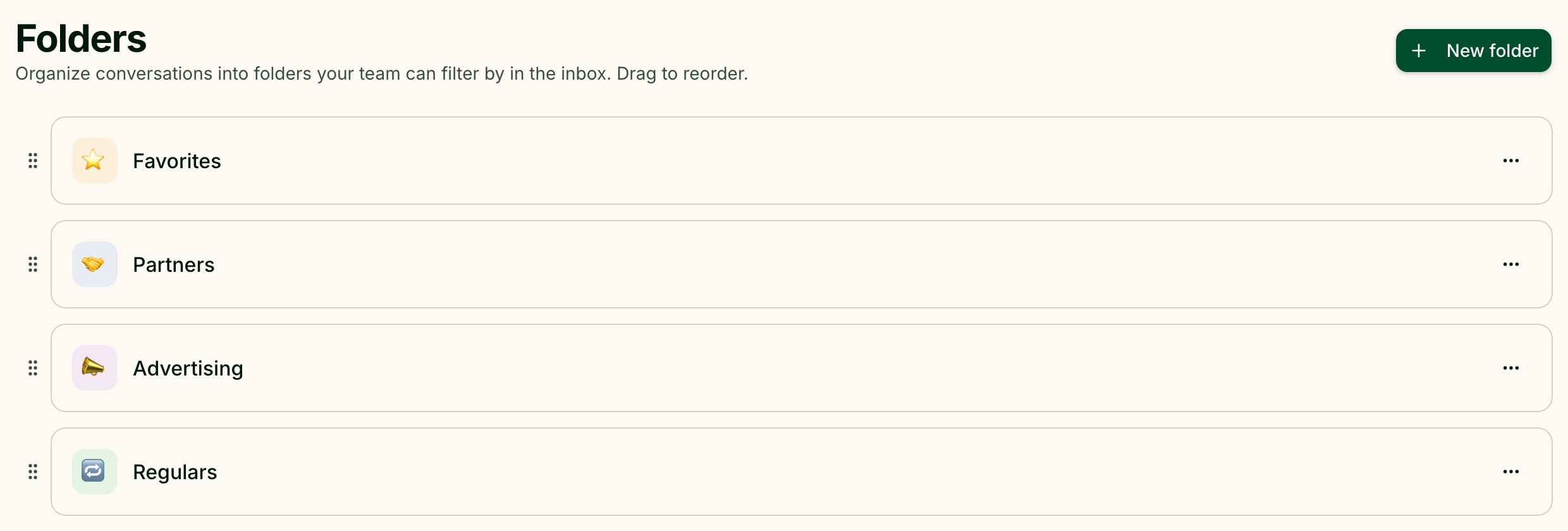
Folders you start with
Every property begins with four folders, named in the property's language:
| Folder | Emoji |
|---|---|
| Favorites | ⭐ |
| Partners | 🤝 |
| Advertising | 📣 |
| Regulars | 🔁 |
They are ordinary folders: rename them, recolour them or delete them if they do not fit the way you work.
Create and edit folders
Press New folder and fill in:
- Name — required;
- Emoji — pick one from the set, or Clear emoji;
- Color — pick one from the set, or Custom color, or Clear color;
- Active — inactive folders are hidden from the inbox.
The preview at the top of the form shows how the folder will look in the inbox.
The ⋯ menu on each folder has Edit, Deactivate (or Activate) and Delete. Drag folders up and down to change their order — the inbox shows them in the same order.
Put a conversation into a folder
Open the conversation. On a wide screen the folder control, Move to folder, sits in the conversation header and shows the current folder or No folder. When the header is too narrow for it, the same control is in Manage conversation — see Conversation details.
Pick a folder, or Remove from folder to take the conversation out. Manage folders at the bottom of the list opens the folders page.
In the list of conversations, a conversation in a folder carries a small label with the folder's emoji or colour and its name.
Filter the inbox by folder
The Folders section of the inbox filter rail lists your active folders, each with the number of conversations in it. Click one to see only those conversations; click several to see conversations from any of them. New folder at the end of the section opens the folders page.
Deactivate or delete
| Action | What happens to the conversations |
|---|---|
| Deactivate | They stay in the folder, but the folder disappears from the inbox rail and from the folder picker. Activate brings everything back |
| Delete | The folder is gone; its conversations stay, just without a folder. It cannot be undone |
Who can do what
Creating, editing and deleting folders depends on the role; without that permission, the page shows Managers only. Moving a conversation into a folder is open to anyone who can reply in it.
Current limits
- One folder per conversation. If a guest is both a partner and a regular, pick one — or use tags, which a guest can have many of.
- No automatic filing. Greetio never moves conversations into folders by itself.
- The count includes archived conversations. The number next to a folder is everything in it, not just what is open.